


TCH Highway BrowserA separate US browser for every account
TCH Browser gives each of your accounts its own profile, its own saved logins and its own dedicated US proxy connection. It never lets a page through your own internet address.
For Windows 10 and 11. You need a TCH account to sign in; your username and password arrive by email when your account is created.
What TCH Browser does
Everything you need to run several accounts side by side, without them ever mixing, and without your own internet address showing up anywhere.
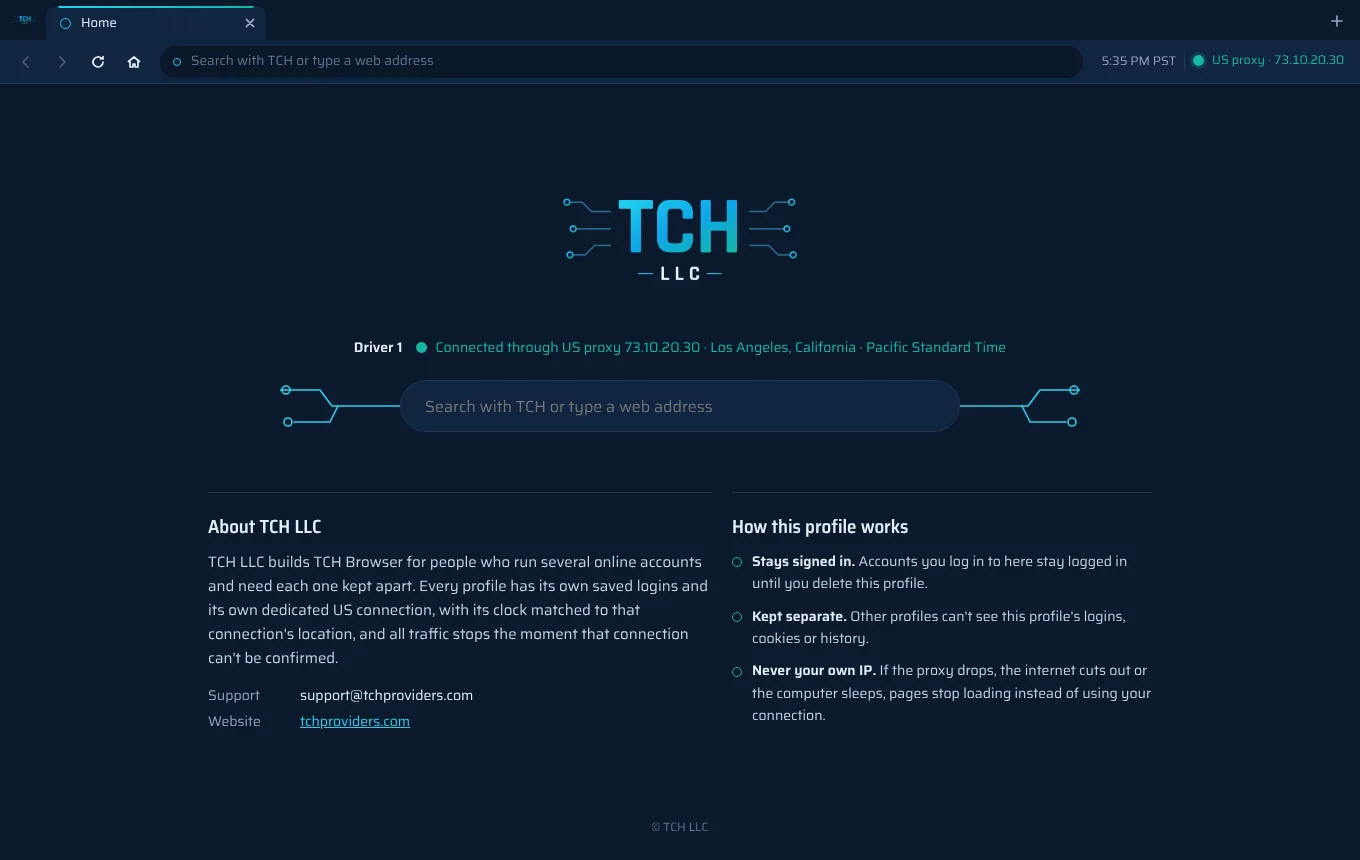
Your own IP stays hidden
- Nothing loads until the connection is confirmedEach time a profile opens, TCH Browser checks that its traffic goes through its US connection before it shows any page.
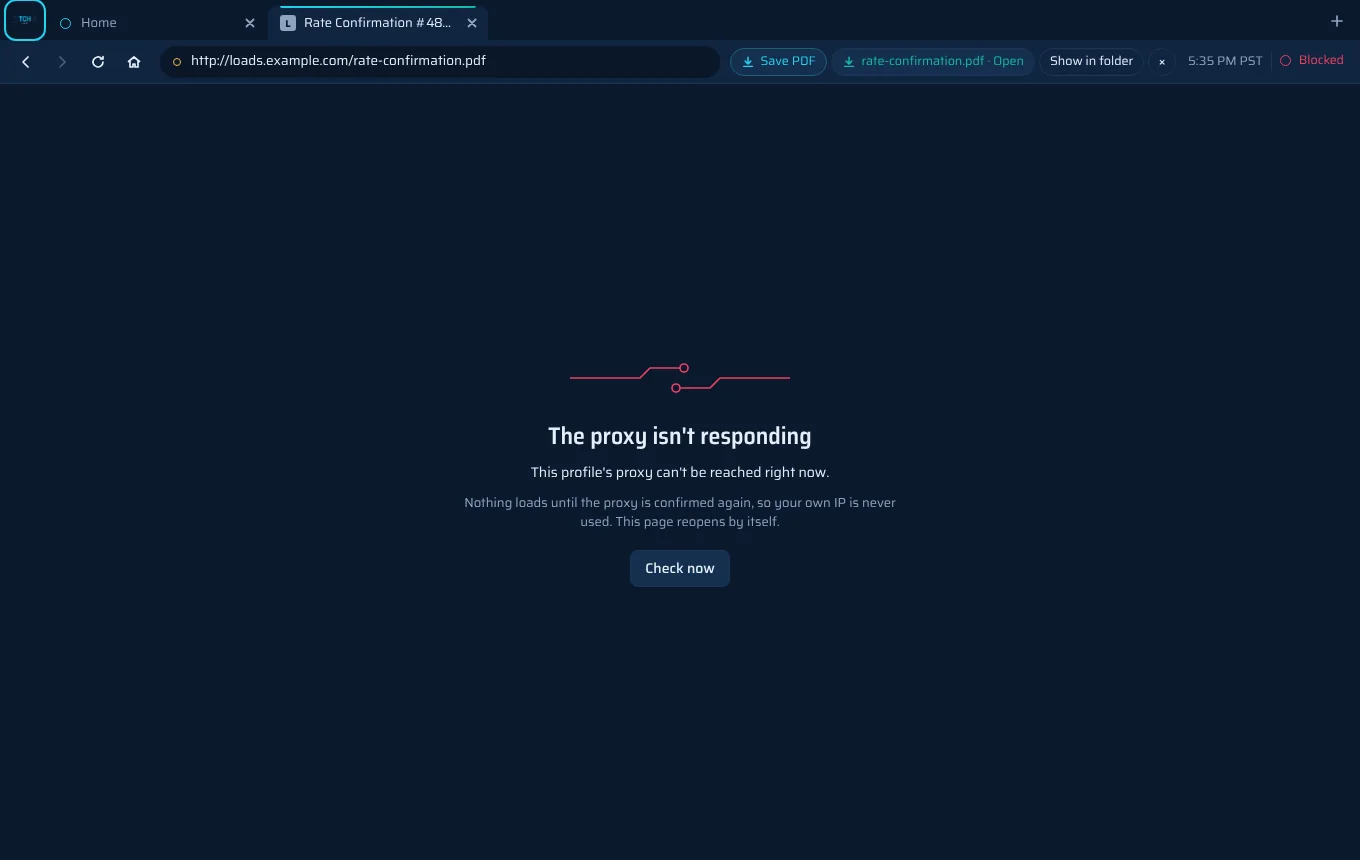
- Stops the moment anything changesIf the connection drops, your internet cuts out, or the computer sleeps or freezes, pages stop loading. They come back on their own once the connection is confirmed again.
- The same IP all sessionIf the connection's IP changes while you work, browsing pauses and you choose whether to continue on the new one, so sites never see a sudden switch.
- No side doorsVideo calls, location requests and outside apps can't reveal your own address.
One profile per account
- Logins stay putSign in to a site once. The profile stays signed in until you delete it, even after you close the app or restart the computer.
- Kept completely apartProfiles never share logins, cookies or history, so Driver 1 and Driver 2 look like two different people.
- Its own US connectionEvery new profile gets its own US connection automatically. There's nothing to set up.
- Local time that matchesEach profile's clock follows its connection's location, so a Dallas connection runs on Central time, and every profile uses US English.


A full browser
- Tabs and a smart address barBack, forward, reload and tabs work as you'd expect. Type an address to go there or a few words to search.
- Pop-ups open as tabsLinks and sign-in windows that open a new window appear as a tab in the same profile, so "Sign in with…" buttons work.
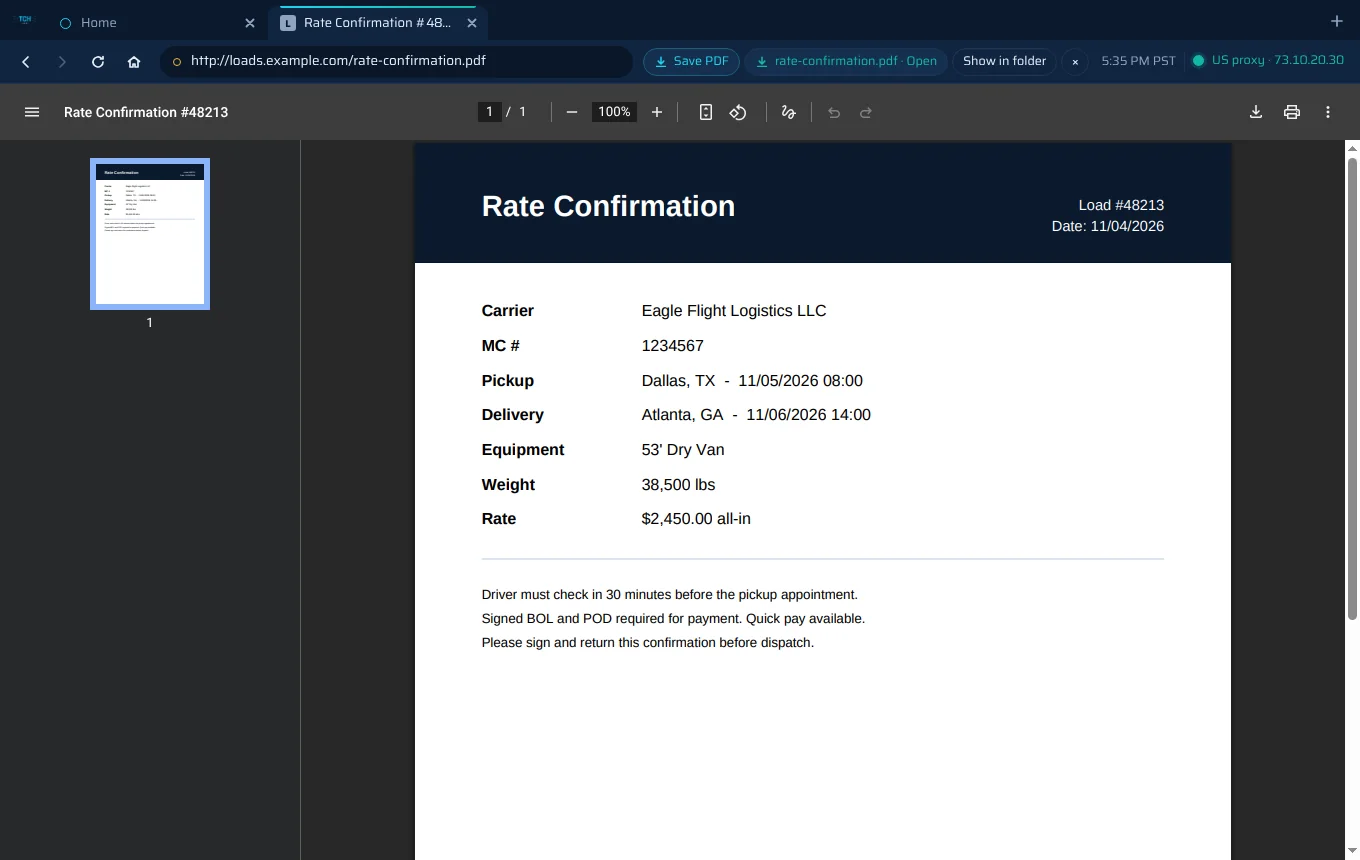
- PDFs open right in the tabZoom, rotate and print. Save PDF puts the file on your computer, even when the website has no download button.
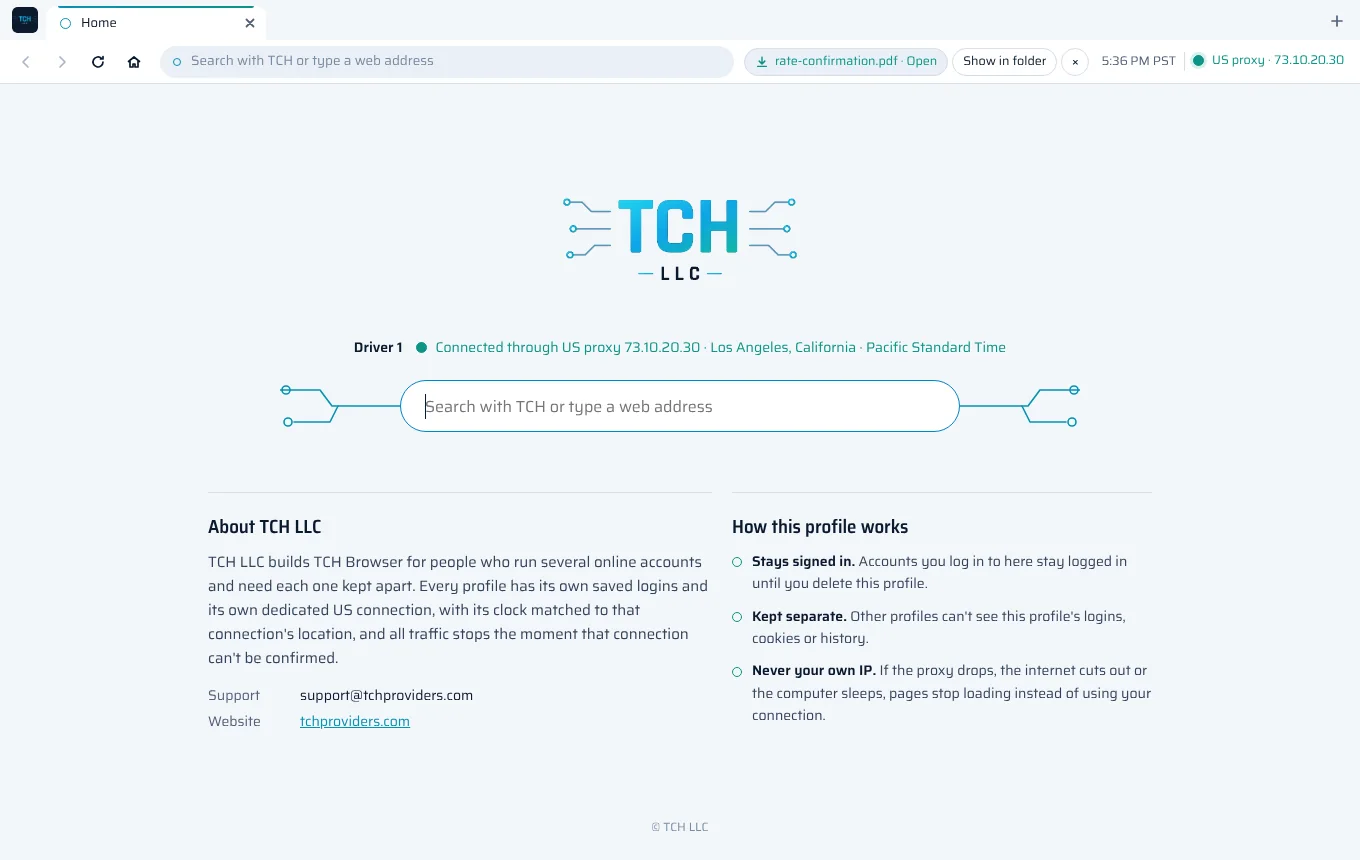
- Downloads you can findEvery download shows its progress in the toolbar, then Open and Show in folder.
Looks after itself
- Updates install themselvesNew versions download in the background. Restart when it suits you, or they install the next time you close the app.
- Light or darkChoose Light, Dark or Auto, which follows your Windows setting. The whole browser follows, websites included.
- Your plan at a glanceYour plan's end date shows at the top of the app, and you get an email a few days before it ends.
Install TCH Browser
About two minutes. You only do this once: after that, updates install themselves.
-
Download the installer
Click Download for Windows. On the page that opens, scroll to Assets and click TCH-Browser-Setup-x.x.x.exe (the numbers are the version).
You only need the .exe file. The .blockmap and latest.yml files next to it are used by automatic updates.
-
Run it
Open the downloaded file. If Windows shows "Windows protected your PC", click More info, then Run anyway. Windows shows this for new apps it doesn't know yet.
-
Choose where to install
Keep the suggested folder or pick another, click Install, then Finish. A TCH Browser shortcut appears on your desktop and in the Start menu.
-
Sign in
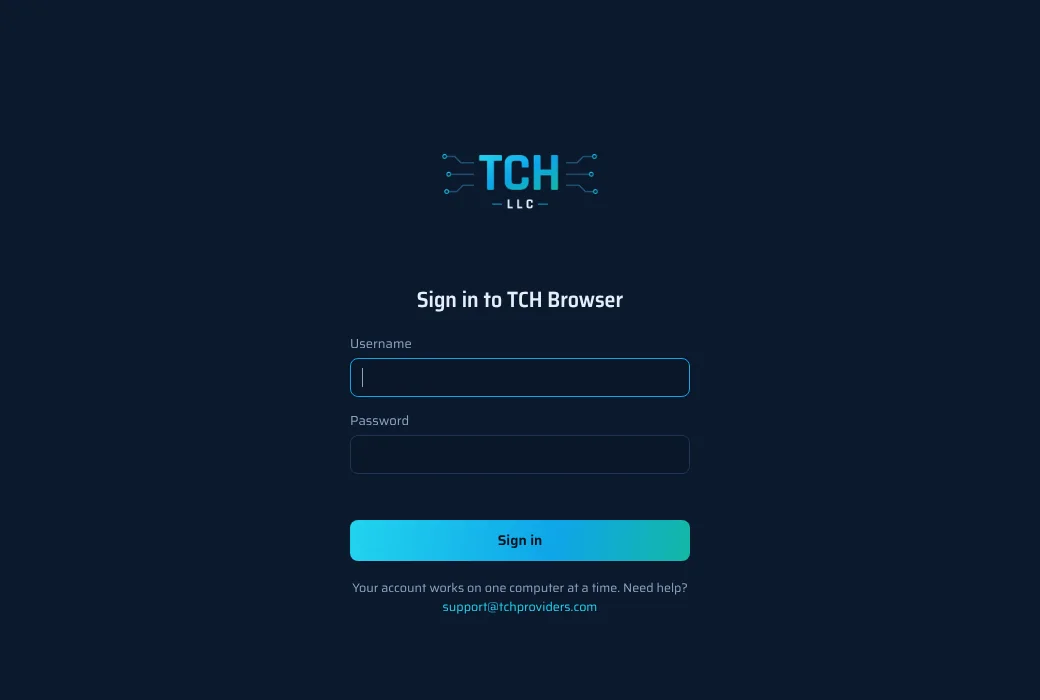
Open TCH Browser and sign in with the username and password from your welcome email. The app remembers you, so you won't need to sign in every time.
Updates
Your profiles, saved logins and sign-in always stay as they are when TCH Browser updates.
Automatic (nothing to do)
It checks for you
TCH Browser looks for a new version when it starts and every few hours.
It downloads in the background
You keep browsing while the new version downloads.
Restart, or don't
A bar at the top of the profiles window says "TCH Browser x.x.x is ready". Click Restart now, or keep working: it installs the next time you close the app.
Install an update yourself
Close TCH Browser
Close all its windows.
Download the newest version
Open the download page. It always shows the newest version. Download TCH-Browser-Setup-x.x.x.exe.
Run it
It installs over your current version. Open TCH Browser and carry on.
To see which version you have, look at the top right of the profiles window, for example v2.1.0.
How to use it
A profile is one browser for one account, for example Driver 1 for one driver's logins. Make as many as your plan allows.
-
Create a profile
Click New profile, give it a name you'll recognise, like Driver 1, and click Create profile. It gets its own US connection automatically.
-
Open it
Click Open. A browser window opens and, within a second or two, the toolbar shows a green US proxy label with its IP and the local time. Each new tab starts on the TCH home page.
-
Sign in to your sites once
Log in to the websites you use for that account. They stay signed in inside this profile until you delete it.
-
Browse
Type an address or a few words in the address bar. Open more tabs with the + button or Ctrl + T. Open a PDF to read it in the tab, and click Save PDF to keep it.
-
Manage your profiles
- Rename changes a profile's name. Nothing else changes.
- Delete removes the profile and erases its saved logins from this computer.
- Auto, Light, Dark at the top switches the look of the whole browser.
- Sign out signs you out of TCH Browser.
Keyboard shortcuts
| Keys | What it does |
|---|---|
| Ctrl + T | New tab |
| Ctrl + W | Close tab |
| Ctrl + Shift + T | Reopen the tab you just closed |
| Ctrl + L | Go to the address bar |
| Ctrl + R | Reload the page |
| Alt + ← / → | Back / forward |
| Ctrl + Tab | Next tab (add Shift for the previous one) |
| Ctrl + 1 to 9 | Jump to a tab |
| Ctrl + S | Save the PDF you're looking at |
| Ctrl + + / − / 0 | Zoom in / out / reset |
If you see a message
| Message | What it means | What to do |
|---|---|---|
| Connecting to your proxy | The profile is confirming its US connection. | Wait a moment. Pages appear by themselves. |
| Re-checking after sleep / network change | Your computer woke up or changed network, so the connection is confirmed again first. | Wait a moment. |
| The proxy isn't responding | The profile's connection can't be reached right now. Nothing loads, so your own address is never used. | Check your internet. It retries by itself. If it lasts, contact support. |
| The proxy changed its IP | The connection moved to a new IP while you were working. | Click Continue on new IP when you're ready. |
| You're offline | This computer has no internet. | Reconnect. The profile resumes by itself. |
| Your plan has expired | Your plan's end date has passed. | Contact support to renew. Your profiles are kept. |
Requirements and help
Common questions
I got a new computer. How do I move my account?
Install TCH Browser on the new computer and sign in with the same username and password. Your profiles are there, ready to use.
Do my saved logins move to the new computer?
No. Saved logins are stored on the computer where you signed in to each site. On a new computer your profiles are there, but you sign in to your websites once more.
Windows warned me about the installer. Is it safe?
Windows shows "Windows protected your PC" for new apps it hasn't seen many times yet. Download TCH Browser only from the official download page linked here, then click More info and Run anyway.
A profile won't connect.
Check that your internet works, then close the profile and open it again. TCH Browser never loads pages through your own address, so it waits until its US connection works. If it keeps failing, contact support with the profile's name.
How do I get more profiles or extend my plan?
Email support@tchproviders.com. Changes apply to your account straight away; you don't need to reinstall anything.
Why does my clock in the browser show a different time?
Each profile uses the local time of its US connection, so websites see a time that matches its location. Your computer's own clock isn't changed.
Get TCH Browser
The download page always has the newest version.
 Powered by The Founders (SMC-PVT) Ltd